


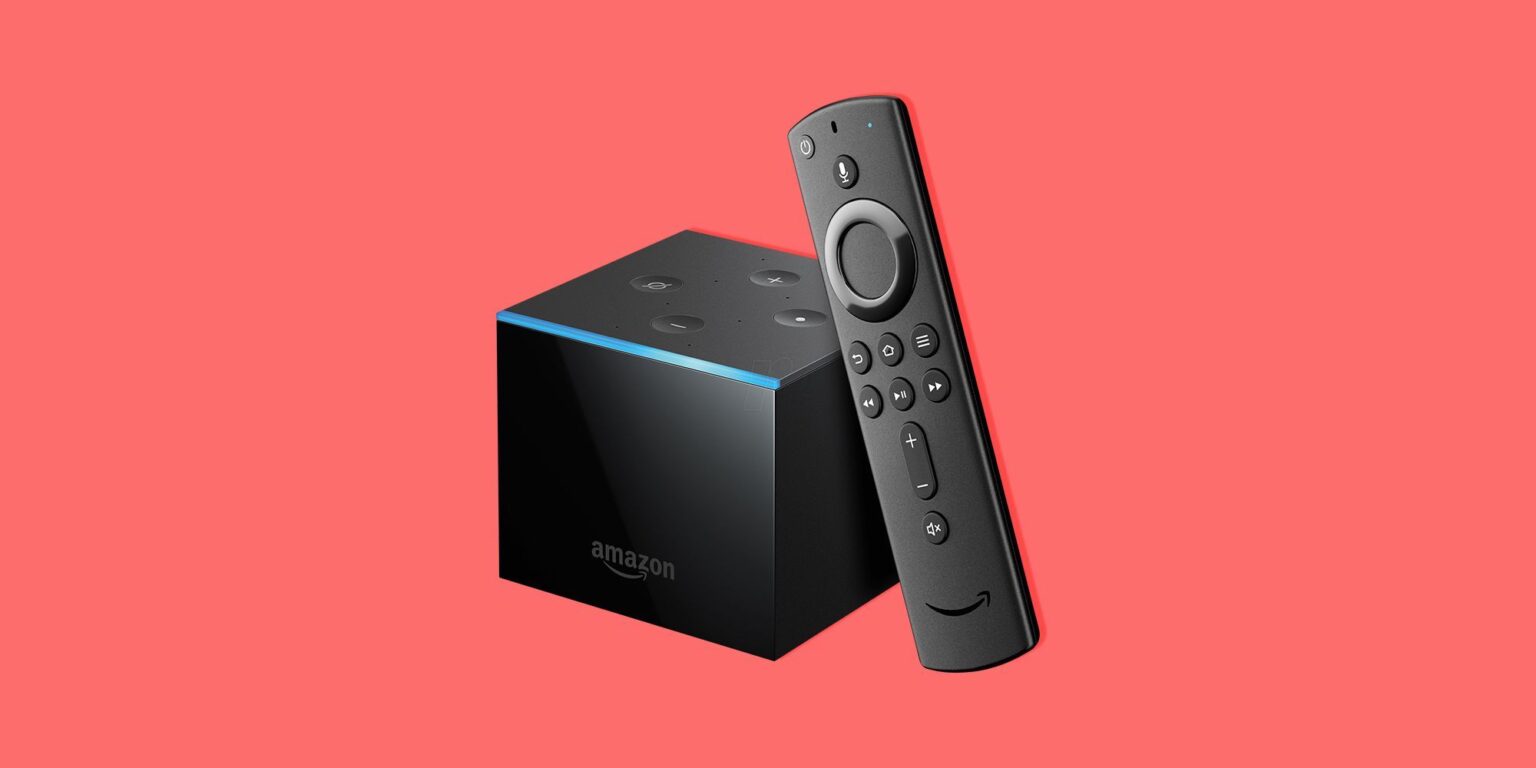
Easy Guide To Change TV-Input Connections 11 With Firestick Remote
Voice commands on a Firestick remote can handle more than playback. When the remote has the right buttons, it can also switch the TV between sources without reaching for another controller. The same process works across Fire TV devices, Fire TV Stick models, and the Fire TV Cube, provided the hardware and settings line up.
What Do You Need To Change TV Input Connections With Firestick Remote?
Start with an HDTV that includes an HDMI port and a stable Wi-Fi signal. The remote itself must carry both a power button and volume controls. Older second- or third-generation Alexa Voice Remotes can work, yet current compatible remotes follow the same button requirement. Remotes without those controls skip input switching entirely.
Setting Up The Fire TV Stick
Modern Fire TV Sticks receive power through the HDMI port or a USB-C connection on newer units. The on-screen prompts handle language selection and Wi-Fi login in the same order as earlier models. Once the device reaches the home screen, Equipment Control becomes available for TV pairing.
Setting Up The Fire TV Cube
The Cube follows the same initial connection steps. After setup finishes, open Equipment Control to unlock additional input options that the Stick does not display by default.
Changing TV Input Connections With Firestick Remote
Input switching works once the remote passes the button check and the TV is registered inside Equipment Control. Users who travel or stream region-locked shows often pair the feature with a VPN to keep access steady across networks.
How Will You Ensure Your Firestick Remote Is Capable of Changing TV Input Connections?
Look for the power button at the top of the remote and confirm volume buttons sit below it. If both appear, the remote can send input commands. Basic remotes without these buttons cannot perform the task.
How To Make Sure Your TV Is Under Proper Settings
Navigate to Settings, then Equipment Control, Manage Equipment, and Input Switching. Review the listed options and adjust any toggle that does not match the TV’s native behavior. This step confirms the Fire TV and television share the same command language.
How Can You Start The Setup Process From Beginning
Return to Settings, Equipment Control, Manage Equipment, and TV. Highlight Change TV without selecting it, then press the Menu button on the remote. The menu resets and lets the pairing sequence run again.

Troubleshooting Common Input Switching Issues
When a voice command produces no response, re-run the TV configuration inside Equipment Control. Some televisions rely on on-screen menus instead of direct commands, so open Input Switching or Input Change Options and select the matching mode. Confirm the remote includes both power and volume buttons before repeating the test.

Using HDMI-CEC for Automatic Input Switching
Many recent televisions support HDMI-CEC, which lets the Fire TV control power and input without extra voice prompts. Enable the feature on the television, then verify the connection registers inside Equipment Control on the Fire TV. Once active, the system switches sources automatically when playback begins.
Voice Command Examples and Variations
Hold the microphone button and speak the desired input. Common phrases include “Switch to HDMI 1,” “Switch to HDMI 2,” or “Switch to HDMI 3.” After adding other devices through Add Equipment, users can also say the device name, such as “Switch to media player.” Always point the remote at the television so the infrared signal reaches the sensor.

Fire TV Cube Specific Input Controls
The Cube offers an extra setting labeled Cycle Through under Equipment Control for televisions that step through inputs rather than accept direct numbers. Newer Cube models also include HDMI passthrough, allowing the same remote to manage connected devices such as cable boxes without separate controllers.
How To Tell Your Fire TV Which Input It Is Connected To?
Go to Settings, Equipment Control, Manage Equipment, and Fire TV. Select the input the device uses, then hold the microphone button and say “Go Home.” The television returns to the Fire TV source automatically.
How To Know What Else Is Connected To Your TV Input?
From Settings, Equipment Control, Manage Equipment, choose Add Equipment. Enter each connected device by name. Once saved, voice commands such as “Switch to media player” route the television to the correct source without memorizing HDMI numbers.
Equipment Control and voice commands keep input management straightforward across Fire TV devices. The same remote that launches apps can also move between television sources once the initial setup is complete, giving users one less controller to locate during regular viewing.