


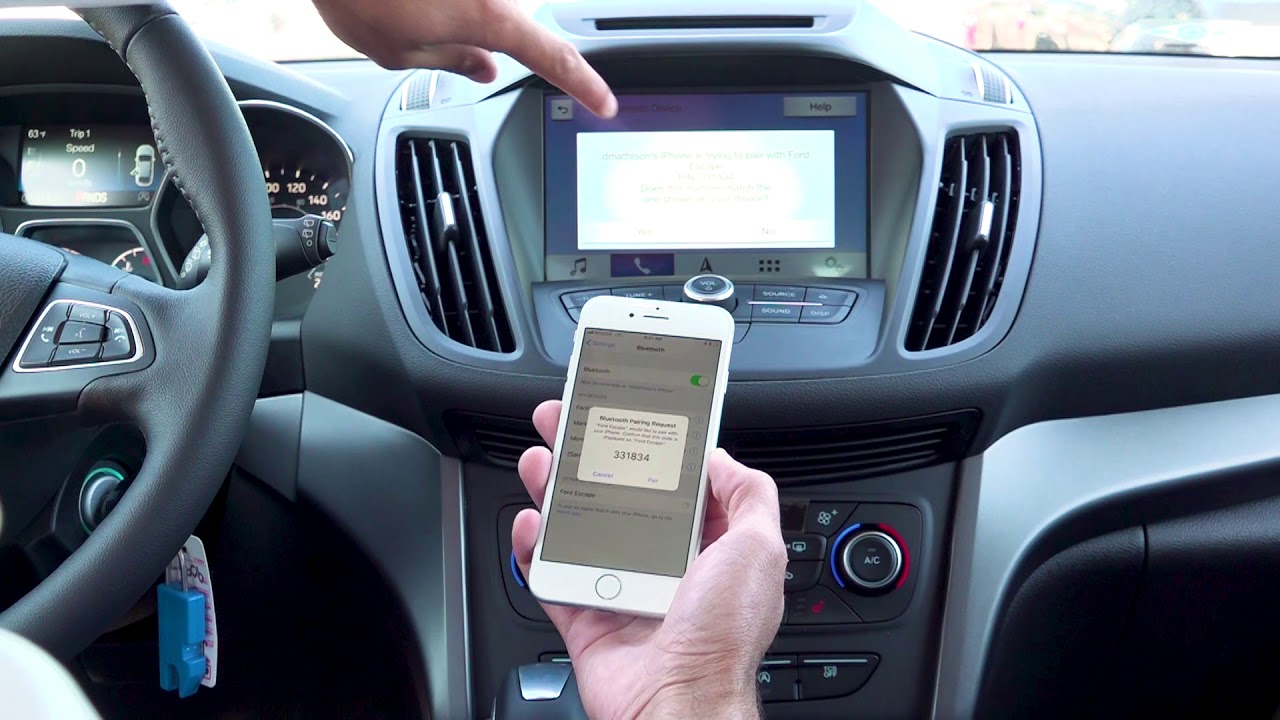
Connecting Bluetooth to Your Ford Escape: A Step-By-Step Guide
In today's technology-driven world, the ability to connect your smartphone to your vehicle via Bluetooth has become a standard feature, offering convenience, safety, and entertainment during your drives. If you own a Ford Escape and want to learn how to connect your smartphone to its Bluetooth system, you're in the right place. In this step-by-step guide, we will walk you through the process of connecting Bluetooth to your Ford Escape, ensuring you can make hands-free calls, stream music, and access various features seamlessly as per RoadRoverz.
Why Connect Bluetooth to Your Ford Escape?
Before we dive into the step-by-step instructions, let's briefly explore why connecting your smartphone to your Ford Escape's Bluetooth system is a valuable addition to your driving experience.
- Hands-Free Communication: With Bluetooth connectivity, you can make and receive calls without taking your hands off the wheel. This ensures a safer driving experience by reducing distractions.
- Access to Music and Apps: Once your smartphone is connected, you can stream your favorite music, podcasts, and navigation apps through your vehicle's audio system, enhancing your entertainment options on the road.
- Enhanced Safety: Hands-free calling and voice commands enable you to stay focused on driving, contributing to a safer journey for both you and other road users.
- Convenience: Once the initial setup is complete, your Ford Escape will automatically connect to your smartphone whenever you enter the vehicle, eliminating the need for manual pairing each time.
Now, let's proceed with the step-by-step guide on how to connect your Bluetooth device to your Ford Escape.
Step 1: Prepare Your Smartphone
Before you begin the pairing process, make sure your smartphone's Bluetooth feature is activated. You can typically find this in your phone's settings under "Bluetooth" or "Connections."
Step 2: Start Your Ford Escape
Turn on your Ford Escape and ensure the infotainment system is powered up. You should see the touchscreen display come to life.
Step 3: Access Bluetooth Settings
- Touch the Phone icon on your vehicle's touchscreen and select Add a Device. Recent guides recommend parking the vehicle and running the system in an open area per official instructions.
- Locate and select "Bluetooth" or "Phone." This is where you'll manage your Bluetooth settings.
Step 4: Enable Bluetooth on Your Ford Escape
- Once inside the Bluetooth menu, turn on Bluetooth by selecting "Enable" or "On." This action will make your vehicle's Bluetooth system discoverable to nearby devices.
Step 5: Pair Your Smartphone
- On your smartphone, you should see a list of available devices, one of which should be your Ford Escape. Select it to begin the pairing process.
- You may be prompted to enter a passcode or PIN. Typically, you can find this code in your vehicle's user manual or it will be displayed on the touchscreen. Enter the code on your smartphone.
Step 6: Confirm Pairing
- Once the passcode is entered, your smartphone will attempt to pair with your Ford Escape. On the vehicle's touchscreen, you will likely be asked to confirm the pairing. Accept the request on the screen.
- You may also be asked to confirm that the passkey matches. Ensure the numbers on your smartphone and the vehicle's display match before confirming.
Step 7: Set Up Phone Functions
- After the successful pairing, you may be asked to set up the phone functions. This may include syncing your contacts and enabling call logs to be displayed on your vehicle's screen.
- Follow the on-screen prompts to complete this step. SYNC 4 may also prompt to enable wireless projection after Bluetooth pairing.
Step 8: Test Your Connection
- To ensure the pairing is successful, try making a test call or playing music from your smartphone. This will confirm that the audio is routed through your vehicle's sound system.
- You can also access your smartphone's music library and apps via the vehicle's touchscreen to enjoy your favorite content seamlessly.
Step 9: Save the Connection
- To make future connections even more convenient, save the paired device in your Ford Escape's settings. This way, your smartphone will automatically connect whenever you enter the vehicle.
- Most Ford Escapes allow multiple devices to be saved, making it easy for multiple drivers to connect their smartphones.

Wireless Apple CarPlay and Android Auto Integration
Recent models integrate wireless smartphone projection directly with Bluetooth pairing. Wireless CarPlay and Android Auto are standard or available on 2025-2026 Escape trims via SYNC 4. Pairing Bluetooth enables automatic projection prompts on compatible phones, letting drivers switch between calls, music, and navigation without extra cables. Once the initial connection is complete, the system often asks whether to enable wireless projection for the next drive. This feature keeps the cabin cleaner and the process faster, especially for drivers who already rely on their phones for maps and playlists. Owners report smoother handoffs between audio sources when the phone stays within range of the vehicle.

Over-the-Air Software Updates for SYNC 4
Modern Ford systems receive updates that improve Bluetooth stability and features. SYNC 4 supports OTA updates via Wi-Fi or the FordPass app. Updates can resolve connectivity issues without a dealer visit, which matters for owners who travel or live far from service centers. Checking for new software takes only a few taps in the vehicle settings menu or inside FordPass. Many connectivity glitches disappear after a fresh update installs, and Ford continues to refine how SYNC 4 handles multiple devices and background streaming. Staying current also keeps security patches applied, an added layer of protection for any data exchanged between phone and vehicle.
Managing Multiple Paired Devices
Newer systems allow several phones with easy switching or prioritization. Most Ford Escapes support multiple saved devices. Users can delete old profiles to resolve pairing conflicts when the system reaches its limit. The touchscreen shows a simple list of previously connected phones, and removing an unused entry frees space for new ones. Some owners keep work and personal phones paired so either device can take over without repeating the full setup. The vehicle remembers each profile's preferences for contacts, call history, and media, which reduces friction during daily commutes or shared driving situations.
911 Assist and Emergency Features
Bluetooth connection enables automatic emergency calling capabilities. SYNC systems include 911 Assist that uses the paired phone for emergency calls. The feature activates after crash detection when the phone is connected, automatically dialing emergency services and sharing location data if the driver is unable to respond. Owners should verify that 911 Assist remains enabled in the vehicle settings after each software update. The system does not replace calling 911 directly when possible, but it adds a layer of protection during serious incidents on the road.
Troubleshooting Tips
If you encounter any issues during the pairing process, consider the following troubleshooting tips:
- Ensure that both your smartphone and your Ford Escape's Bluetooth settings are turned on.
- Make sure your smartphone is discoverable and set to "visible to all devices."
- Double-check that the passcode or PIN you entered matches the one displayed on your vehicle's screen.
- If you've previously connected multiple devices to your Ford Escape, it's possible that the system reached its device limit. Delete any unnecessary connections to make room for the new pairing.
- Delete the old SYNC profile from both the phone and the vehicle if the connection continues to fail.
- Restart the phone or toggle Bluetooth off and back on to clear temporary glitches.
- Check for SYNC software updates through FordPass or schedule a dealer visit if issues persist after basic resets.
Conclusion
Connecting your smartphone to your Ford Escape via Bluetooth is a straightforward process that offers a range of benefits, from hands-free calling to seamless music streaming and enhanced safety. By following this step-by-step guide and troubleshooting tips, you can enjoy a more connected and convenient driving experience. The added layers of wireless projection, software maintenance, and emergency features make the system more capable than earlier versions. Owners who keep profiles clean and software current report fewer interruptions during daily drives. Take the time to set up the connection once, and the vehicle will handle the rest on future trips.